📚Contribute to Public Library @ NEU
Capture courses in 3 simple steps
Install the extension, open Eval25 reports, and sync to your library.
1
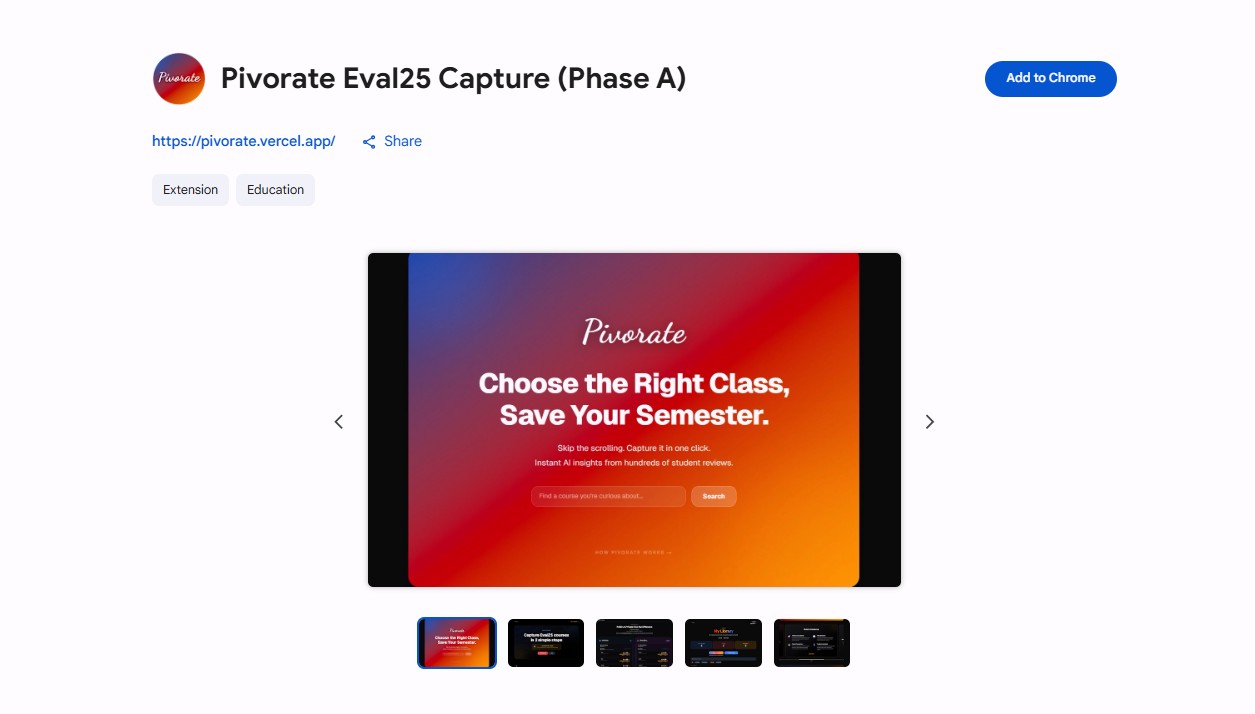
Install the Extension
Get the official PivoRate extension from the Chrome Web Store. It works on Chrome, Edge, Brave, and other Chromium browsers.
2
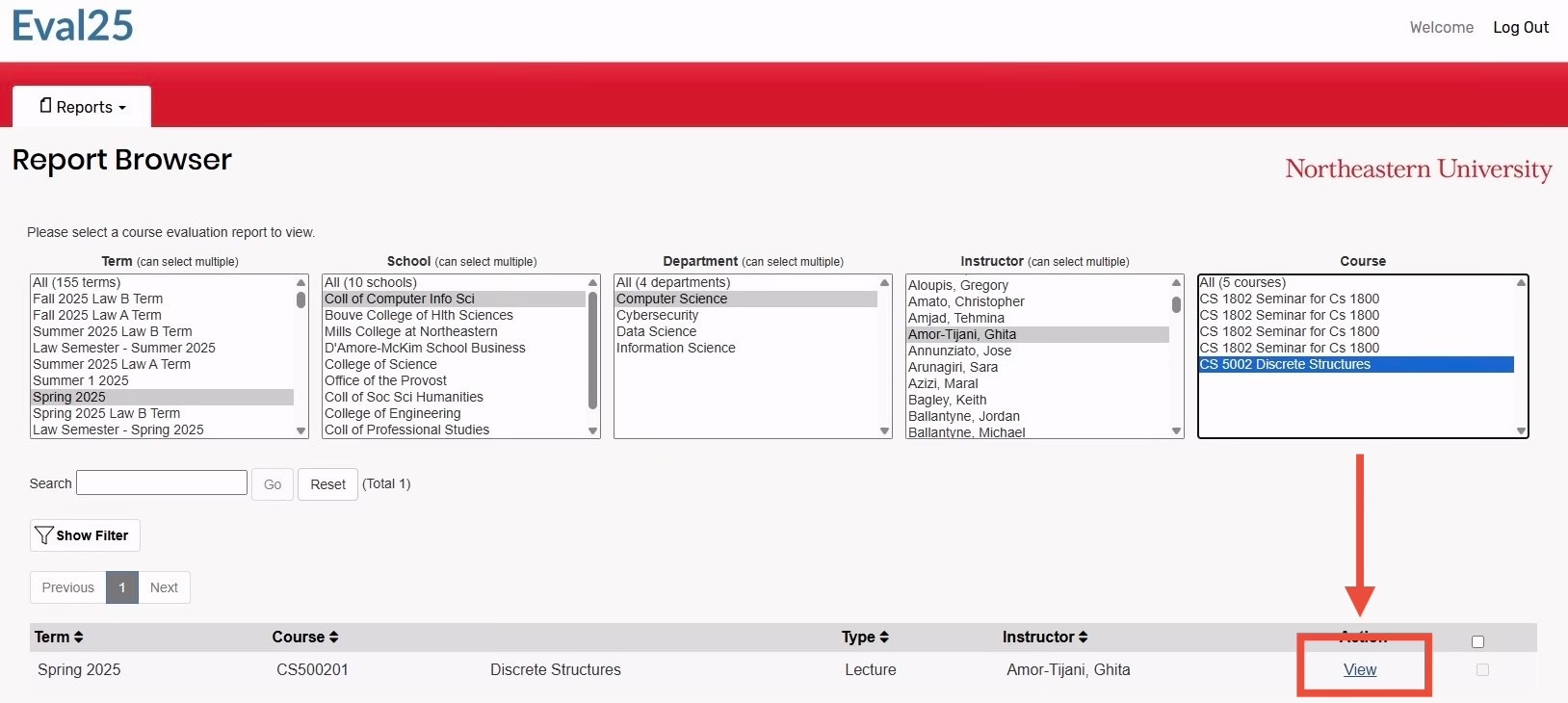
Access Eval25 Reports
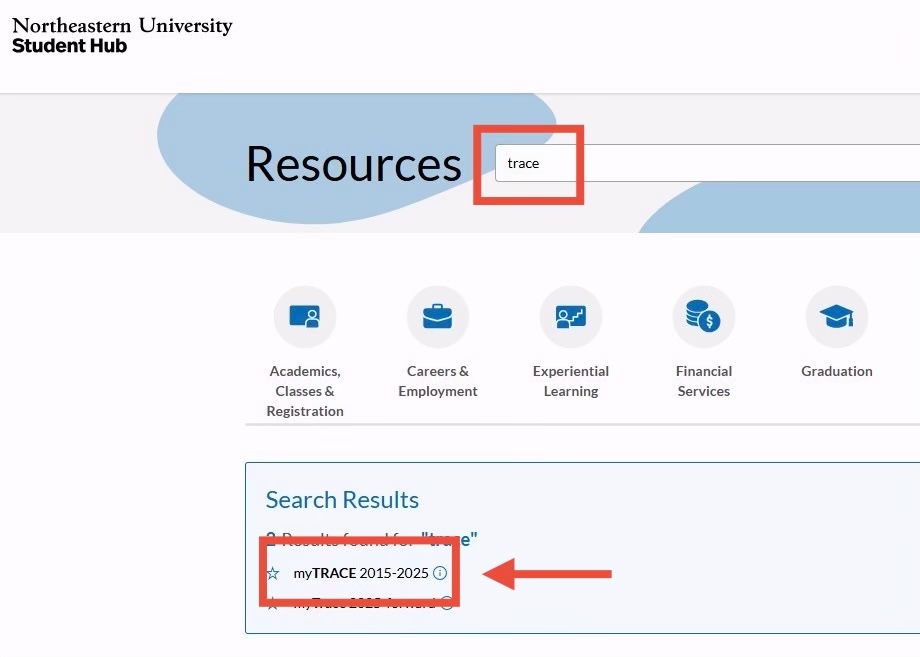
PivoRate needs to see the course reports to help you. Access them through the Northeastern Student Hub.
1Log in to Student Hub
2Search for "myTRACE 2015-2025"
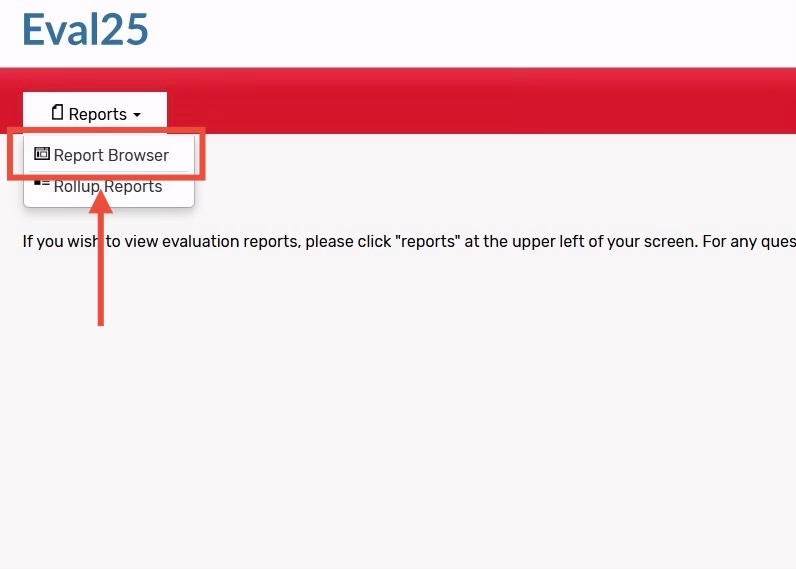
3Click "Reports" in the top bar
4Select "Report Browser"
3
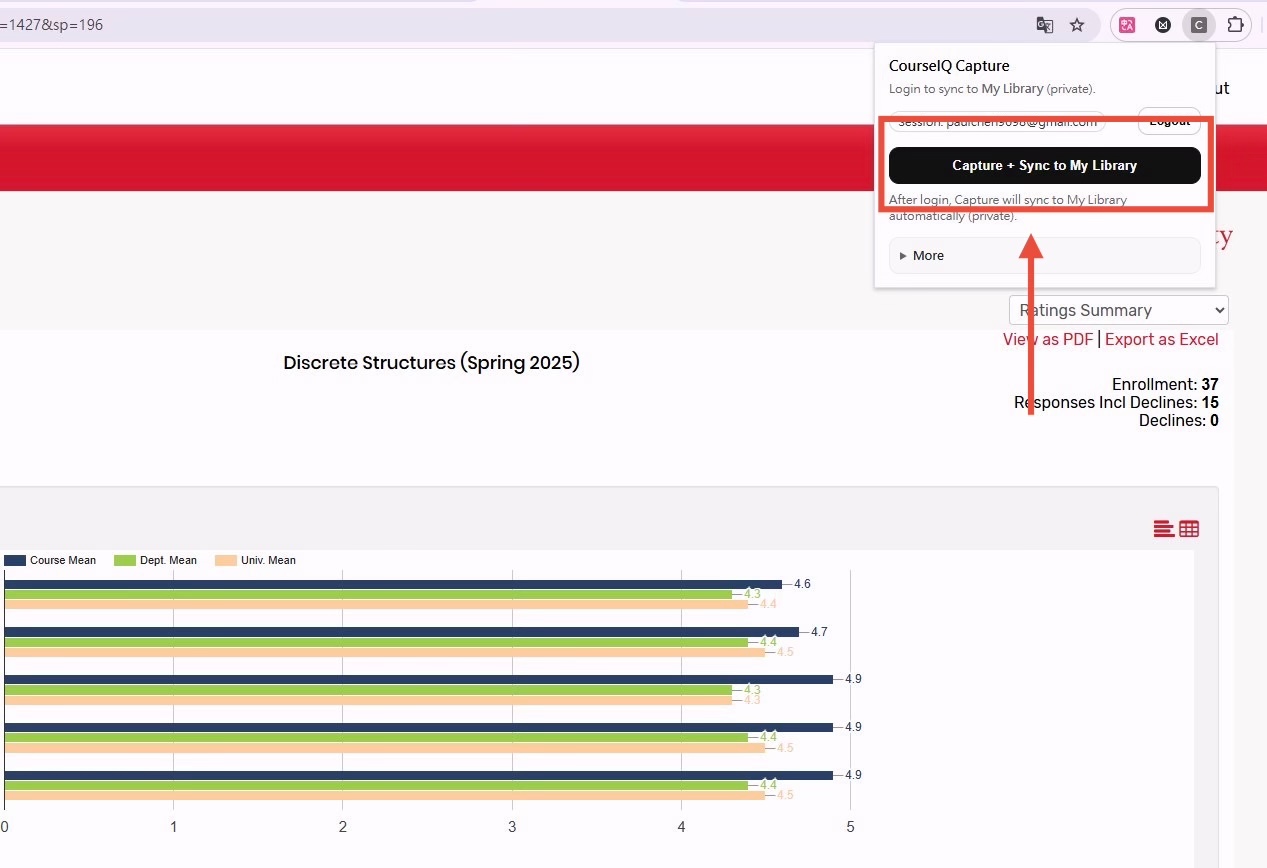
Capture and Sync
Open any course report and click the PivoRate extension. One click saves everything to your library and starts the AI analysis.